Why My GA4 Explorations Only Went Back Two Months
06 Aug 2026Overview ☀
I wanted to know what time of day people read this blog. It seemed like a question analytics should answer in about thirty seconds.
It took considerably longer, because the answer I got back covered 28 days and refused to go any further. Meanwhile a report two clicks away was cheerfully showing me numbers from June 2023.
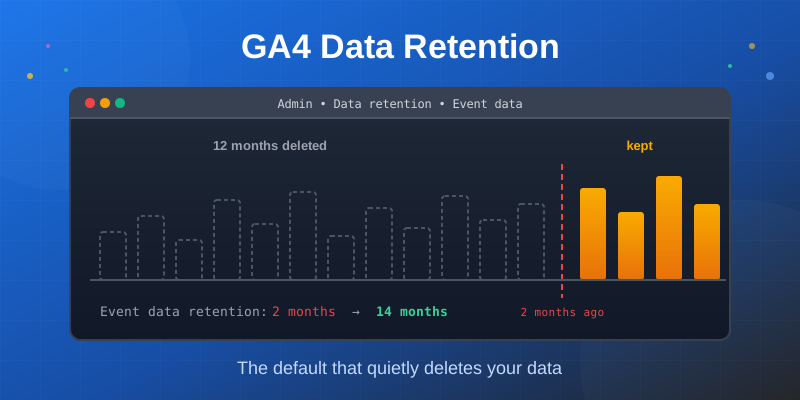
The cause turned out to be a single dropdown I had never looked at in three years of owning the property. GA4 sets event data retention to 2 months by default, which is the shortest option Google offers. It is free to change, it takes about thirty seconds, and it is not retroactive, which is the part that actually matters.
This post is what the symptom looks like, why the two halves of GA4 disagree with each other, where the setting hides, and what it cost me to find out late.
The Symptom 🔍
Here is the contradiction that sent me looking.
Open Reports then Engagement then Landing page, set the date range to
something absurd like 1 January 2020 to today, and GA4 hands over the lot. My
oldest data is 8 June 2023 and it is all there, every month of it.
Now open Explore, build a free-form table, and ask the same property for
anything more than a couple of months old. Empty. No error, no warning, no
banner explaining why. The table just stops.
Same property, same account, same date picker. Two completely different answers about what data exists.
Why The Two Reports Disagree ⚙️
The two halves of GA4 read from different places.
Standard reports are aggregated. Views, sessions, users per page per day are rolled up and stored as summaries. Those summaries are not governed by the retention setting at all, which is why my 2023 numbers survive.
Explorations read raw event data. Every page_view, every parameter, every
user identifier. That is the expensive stuff to store, and that is what the
retention setting governs.
So the setting does not break your reports. It quietly removes your ability to ask new questions of old data. Google’s own wording on the settings page says as much, in a sentence that is easy to skim past:
These controls don’t affect most standard reporting, which is based on aggregated data.
Read that as a reassurance and you move on. Read it as a warning and you go looking for what it does affect.
Where The Setting Lives 🧭
Admin (the cog, bottom of the left rail), then Property settings, then
Data collection and modification, then Data retention.
Or skip the clicking, because the URL is addressable:
https://analytics.google.com/analytics/web/?authuser=1#/a<ACCOUNT>p<PROPERTY>/admin/datapolicies/dataretention
Swap in your account and property IDs. Both are in the property selector, and
the property ID is also on Admin then Property details. Mind the authuser=
value if you have more than one Google account signed in; a fresh tab defaults to
authuser=0 and you may not be in the slot you think you are.
This is what mine looked like:
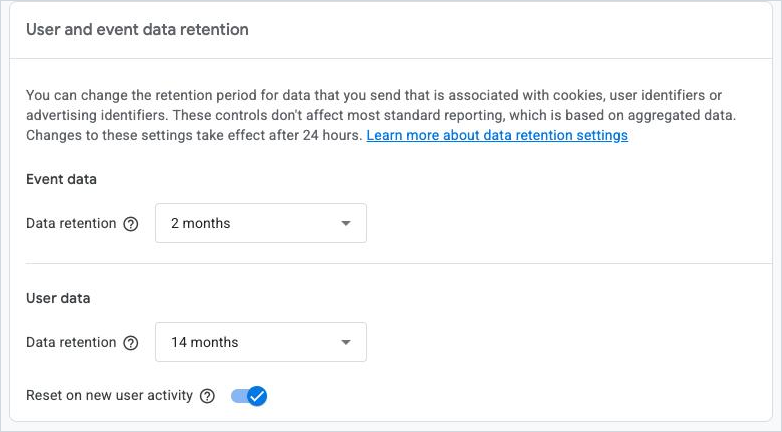
Note that User data was already on 14 months. Only Event data ships on the short setting, which makes the panel look half-reasonable at a glance and is probably why I had scrolled past it before.
The Fix 🔧
Open the Event data dropdown. On the free tier there are exactly two options:
2 months and 14 months. Pick 14, then Save.
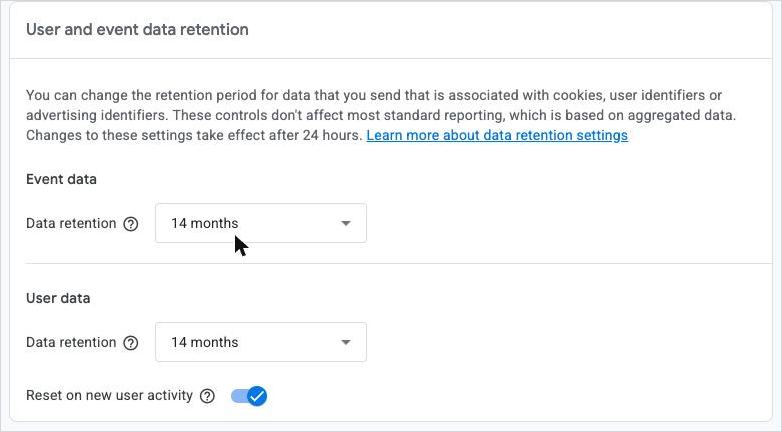
Three things worth knowing while you are in there:
- Confirm with a page reload, not the button. The panel will happily display a value you have not saved. The Save button greys out when it takes, but reloading the page is what actually proves it.
- You need Editor or Administrator on the property. A greyed-out dropdown means you are a Viewer or Analyst.
- It is per property. There is no account-level switch, so a multi-property account means repeating this by hand for every one.
14 months is the ceiling on the free tier. The longer options, 26, 38 and 50 months, are Google Analytics 360 only.
Leave User data alone, and leave Reset on new user activity switched on.
The Part That Stings 🩹
The change is not retroactive.
You are buying future detail. Everything already aged out is gone, permanently, and no support ticket or API call brings it back. Google also notes that changes take up to 24 hours to take effect.
So the real cost of this default is not “I have to change a setting”. It is however many months passed between creating the property and finding out. For me that was three years of event-level data I can never analyse, on a blog whose whole value is that its old posts keep working.
That asymmetry is why this is worth doing on a property you are not even actively looking at yet. The setting costs nothing to change today and cannot be changed backwards tomorrow.
What It Actually Cost Me 📉
Back to the original question: what time of day do people read this?
Here is what I could get, and 28 days is all of it:
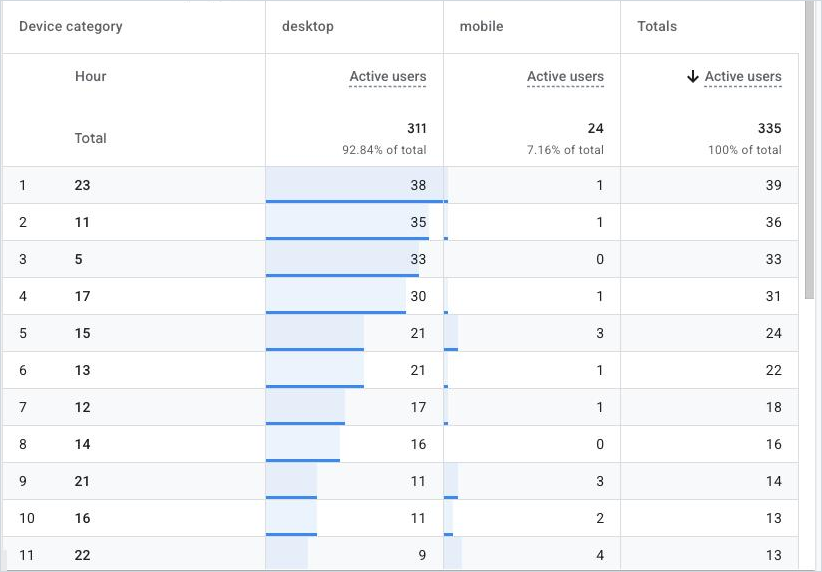
Two patterns sit on top of each other in that table, and the mobile column is what separates them.
The human one. A solid block through the UK working day, roughly 11:00 to 17:00, with an evening tail. Mobile peaks at 22:00, then 15:00 and 21:00. That is a developer reading something on the sofa.
The other one. 23:00 is the single busiest hour of the day at 39 users. 05:00 is third at 33. Both are near enough zero mobile. Nobody reads a .NET blog at five in the morning in those numbers, and bots do not browse on phones.
That second pattern turned out to be a much bigger story than I expected once I looked at geography, but it is a different post.
The useful conclusion was small and practical: publish in the UK morning so a post is live for the 11:00 to 17:00 block. Fine. But I reached it from 28 days of a mixed population, when I should have been able to reach it from a year of data and strip the noise out first.
One more limitation worth flagging while you are in Explore, because it cost me another ten minutes of hunting: GA4 has no day-of-week dimension. Not in reports, not in Explorations. You get Hour, Nth hour, Date + hour, Week and Nth week, and nothing that gives you Monday to Sunday. If you want to know whether Tuesday beats Friday, the BigQuery export is the only route.
Why The Default Is Two Months 🤔
Google does not say, so this is inference rather than fact.
Raw event data is the expensive thing to keep. Two months is cheap, and the overwhelming majority of properties never open Explore, so the majority never notice. The people who do notice are doing the kind of analysis that shades towards the paid tier, where the longer windows live.
Whatever the reason, the practical read is the same: the default is set for Google’s storage costs, not for your analysis. It is worth assuming the same of every other default in the product, which is roughly the frame of mind I went back in with.
Check Yours 📋
If you have a GA4 property, this takes less time than reading this far.
Admin,Data collection and modification,Data retention.- If
Event datasays2 months, change it to14 monthsand Save. - Reload to confirm.
- Repeat for every property you own.
Then do it again for any property you create from here on, because new ones still arrive on the default.
What I Took Away 💡
- Two reports disagreeing about what data exists is a signal, not a bug. It meant two different storage layers with two different rules, and it was worth chasing rather than shrugging at.
- “Does not affect standard reporting” is doing a lot of work in that sentence. Reassurance and warning are the same words depending on which half of the product you use.
- Settings that cannot be reversed deserve a look before you need them. Not after.
What Is Next 🔮
- Revisit the hour-of-day question in a year, once 14 months of event data has actually accumulated.
- Work out how much of my traffic is automated, because the 23:00 and 05:00 spikes were the loose thread on something considerably larger.
- Look at the BigQuery export, which is free at this volume, keeps raw events indefinitely, and would have made this entire post unnecessary.
If you have had a GA4 property sitting quietly for a few years, go and look at that dropdown. It is thirty seconds, and the clock has been running the whole time.
Success! 🎉